Knowledge Base
Unlock FL Studio on a computer WITH INTERNET access [ Offline Unlock see here ]
1. Download & install - If you are trying to update FL Studio make sure you download and manually run the installer for the latest version found here. FL Studio does not automatically install updates like a Mobile 'App' nor can it be updated simply by unlocking it.
RECOMMENDED: Always download and install the latest FL Studio release here
2. Make sure you can sign in to your Image-Line Account - Click here to test your access. You will need to internet access your account to unlock FL Studio OR if you don't have an account and are redeeming a 20 digit product code you will create one at Step 3.
3. Unlock/update FL Studio - Open FL Studio and from the top-left menus select 'HELP (1)' then 'Unlock FL Studio (2)',
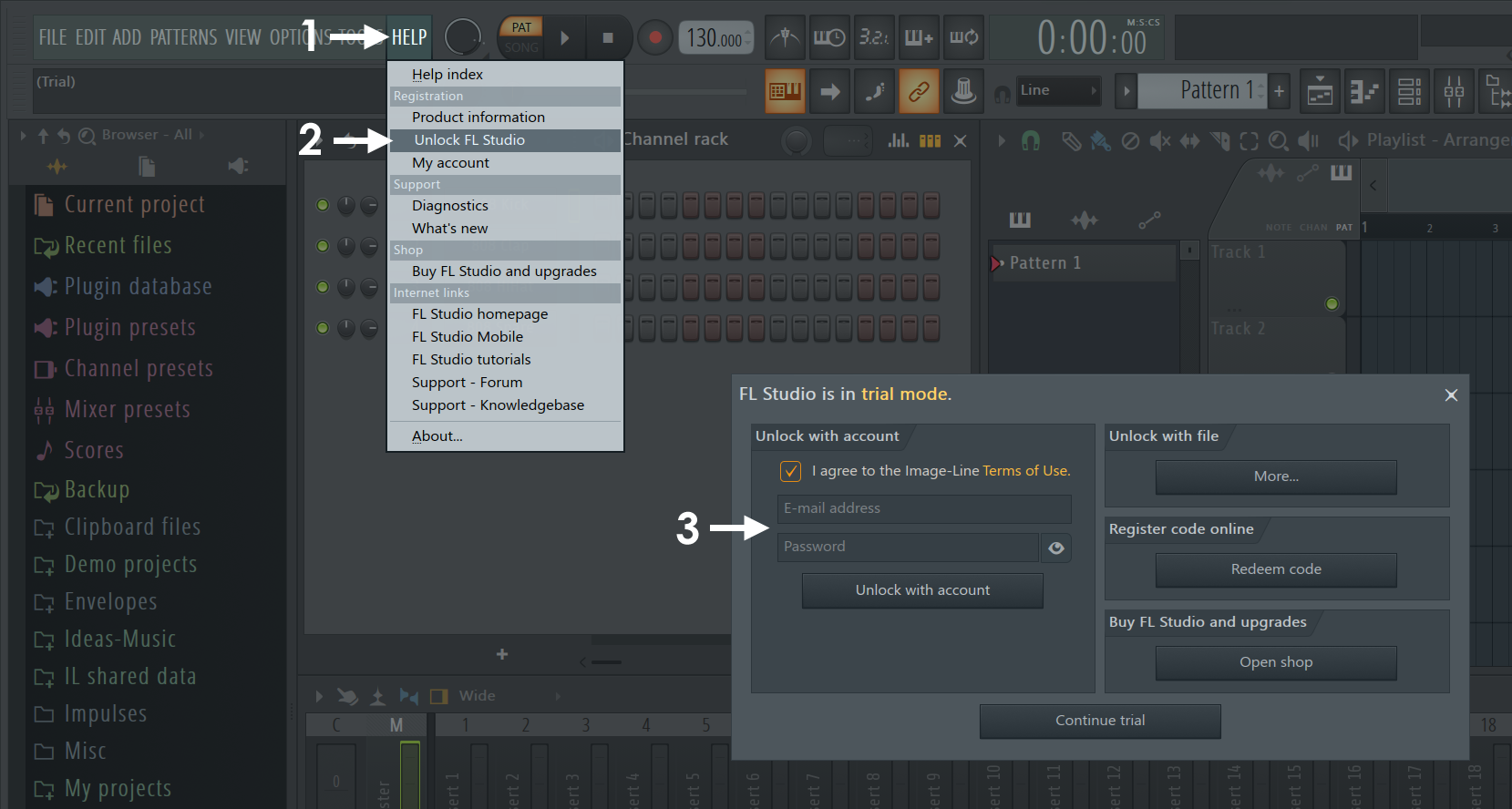
4. Login with your FL Studio Account e-mail and password under the 'Unlock with account' section and click Unlock...
Use the 'Redeem code' to registered a 20-digit code and created an account. The code itself does not unlock FL Studio, it serves to establish your account and add a FL Studio license to it. After redeeming your code, use the 'Unlock with account' option to activate FL Studio. Once redeemed, your code becomes invalid.
Updating FL Studio? If you have recently unlocked FL Studio this panel may show 'Renew license'. Clicking the button should automatically update your license to work with the installed version. The button remains visible after fl studio is unlocked, but does not necessarily mean your current license is up-to-date. So click it anyway. You only need to do this once for each FL Studio update!
5. If Two Factor Authentication (2FA) is active on in your Image-Line Account you will be asked to enter the 2FA code. Enter the 6 digit code sent to your e-mail where the pop-up says 'Enter the verification code here'.
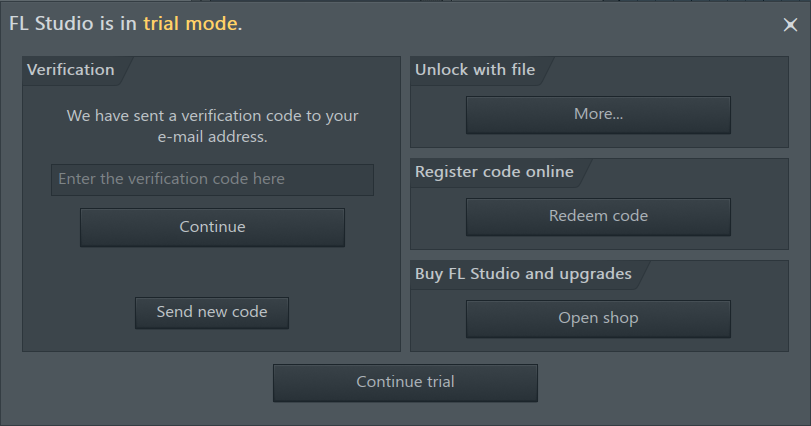
NOTES: About your 2FA code e-mail:
- From: 'noreply@image-line.com'
- Subject: 'Image Line Account | Two Factor Authentication code ( 123456 ) [ Action Required ! ]'.
- Code: 123456 is just an example. You will get a unique 6 digit 2FA code each time you use it. This code changes each time you unlock FL Studio. Make sure image-line.com emails are whitelisted in your email or search spam/trash folders if you do not see it.
6. After a short wait, be patient, you will see another pop-up ...
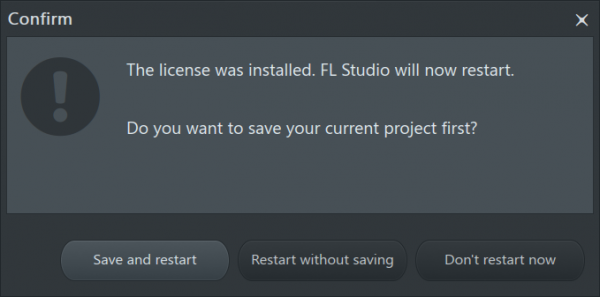
7. Restart FL Studio - FL Studio must be restarted to complete the unlock process.
NO INTERNET Unlock FL Studio 21 [Older FL Studio & VST/AU Plugins? Look here]
1. Download & install - If you are trying to update FL Studio make sure you download and manually run the installer for the latest version found here. FL Studio does not automatically install updates like a Mobile 'App' nor can it be updated simply by unlocking it.
2. Open FL Studio HELP (1) > Unlock FL Studio (2) to open the Unlock Panel (3)
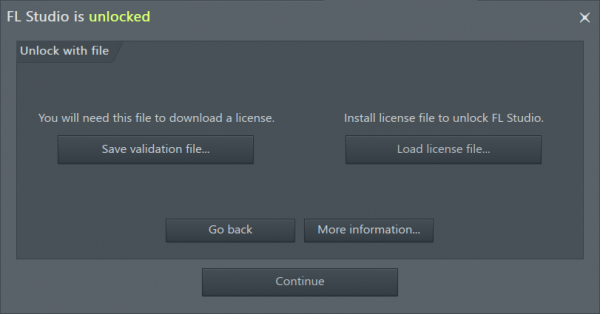
3. From the Unlock panel click 'More ...' under the Unlock with file section
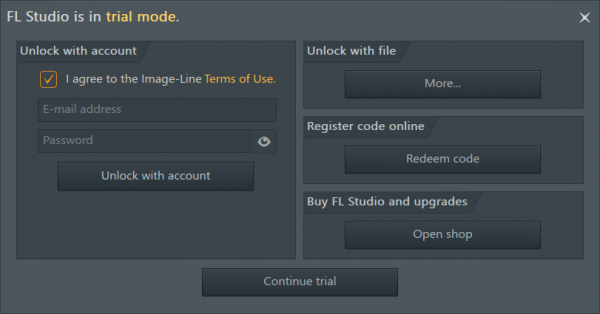
4. From FL Studio 20.9 and higher, you will need to upload the unique Validation file FROM EACH COMPUTER YOU WANT TO UNLOCK OFFLINE. Create one from the pop-up dialog 'Save validation file ...' button. This will save a file 'licensevalidation.txt'. You will need this file when you go to your Image-Line Account.
NOTE: It is OK to rename the 'licensevalidation' file name to remember which computer it belongs to. Do not edit or change the contents of the file in any way.
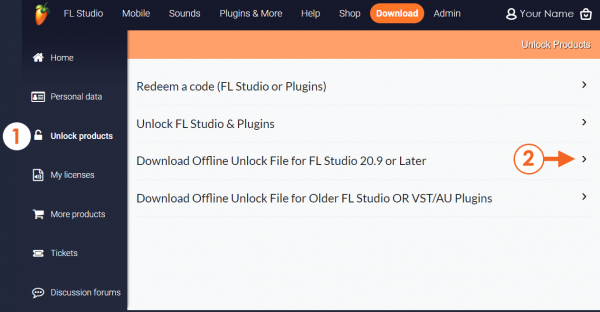
5. Go to your Image-Line Account and choose UNLOCK PRODUCTS (1). Then Download OFFLINE Unlock File for FL Studio 20.9 or Later (2)
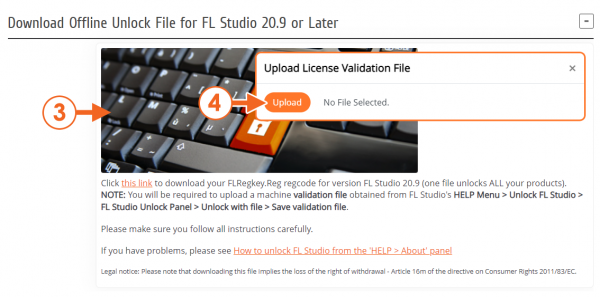
6. Click the Keyboard Image (3) to download your Regkey file. You will be prompted to upload the 'Validation File' from step 3. Click 'Upload' (4) from the pop-up and browse to the location of you file - licensevalidation.txt.
7. After a while a download will start and you will receive a 'FLRegkey.Reg' file. NOTE: This file will only work on the computer from which the Validation File was generated. You will need to upload a Validation File for each computer you need to unlock offline. NOTE: If you are using a pop-up blocker it will probably throw up a warning at this point. It is safe to proceed, your browser wants to save the Regkey file.
8. Copy the 'FLRegkey.Reg' file to your non-internet connected computer.
9. Unlock/update FL Studio - Open FL Studio and from the top-left menus select 'HELP' then 'Unlock FL Studio' in the list and choose... Unlock with file > Load license file
10. From the Unlock with file panel choose 'Load license file...' and choose the Regkey.Reg file you saved earlier.
11. Restart FL Studio - FL Studio must be restarted to complete the process.
OFFLINE / NO INTERNET Unlock File for FL Studio BEFORE 20.9 & VST/AU Plugins
1. Download & install - If you are trying to update FL Studio make sure you download and manually run the installer for the latest version found here. FL Studio does not automatically install updates like a Mobile 'App' nor can it be updated simply by unlocking it.
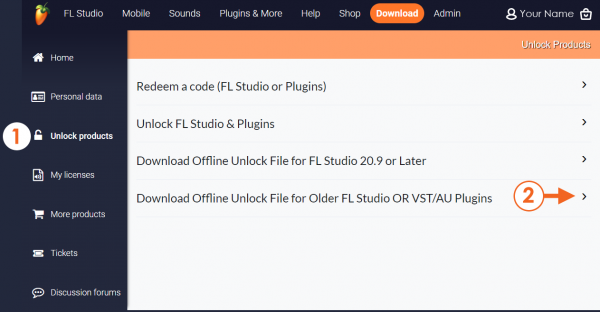
2. Go to your Image-Line Account and choose UNLOCK PRODUCTS (1).
3. Then 'OFFLINE Unlock File for Older FL Studio OR VST/AU Plugins' (2)
4. Click the Keyboard image (3) to download the 'FLRegkey.Reg' file from your Image-Line Account on a computer or device with Internet access. NOTE: If you are using a pop-up blocker it will probably throw up a warning at this point. It is safe to proceed, your browser wants to save the Regkey file.
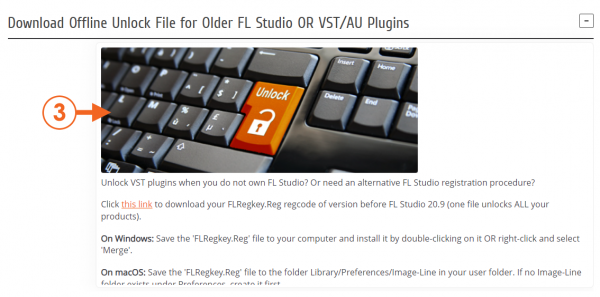
5. Copy the 'FLRegkey.Reg' file to your non-internet connected computer (or to the computer where the about panel login method does not work).
6. Unlock/update FL Studio - Open FL Studio and from the top-left menus select 'HELP' then 'Unlock FL Studio' in the list.
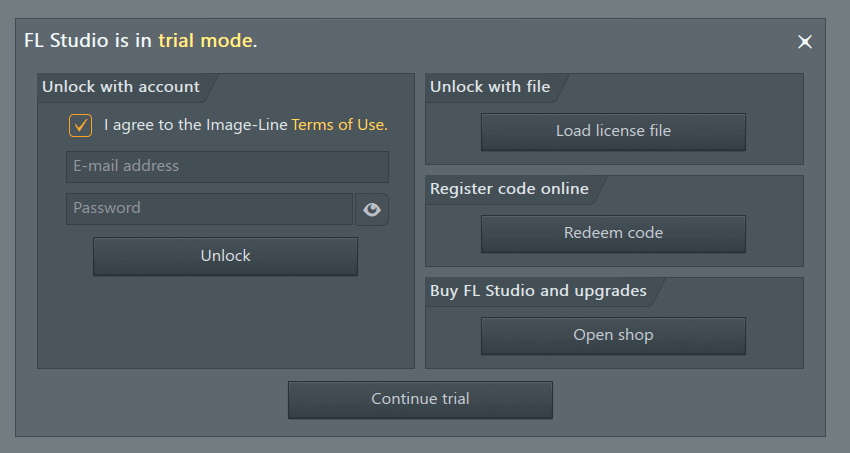
7. Click 'Load license file' and browse to the saved 'FLRegkey.Reg' file, select it and accept. After a short wait, be patient, you will see another pop-up ‘ The registration succeeded ’
8. Restart FL Studio - FL Studio must be restarted to complete the process.
NOTE: FL Studio versions prior to 20.7.3 have the License and File unlock methods shown directly on the About panel.
- Unlock FL Studio in a School or Computer Lab environment for multiple users - See How to install and unlock FL Studio for all users of a computer in a Schools computer lab
- Unlock Windows VST or Mac VST/AU Plugins & Content - See 'How do I unlock my software with the registration file?'
- Activate Boxed/Online software using a 20 digit Serial Code - See 'How to register your Boxed software'
- How do I get an Image-Line account? - See How to set up an Image-Line Account. Only necessary if you haven't registered your box to your Account.